How do I install QCS for multiple districts?
Introduction
Each QCS site ID only supports contracts from a single USACE District. Although you may have many contracts in one QCS site that site can only support contracts from one USACE District. If you need to use QCS on contracts from more than one USACE District you will have to create additional sites for each District. The default folder when installing QCS is C:\Program Files\QCS. We recommend that you install additional Districts within that same folder using the name of the District as the name of the folder.
Steps for Adding New Districts
Please use the following steps to create a new QCS site for an additional District:
- If you are running Windows XP and you have a QCS shortcuts on the desktop called "QCS", please rename it, or it will be overwritten. For example lets say that you currently have a contract for the Los Angeles District. You will want to rename the shortcut to "QCS-Los Angeles". The reason for this is that the QCS setup program will overwrite the current shortcut with a new shortcut for the new installation that will now point to the wrong District. This only applies to computers running Windows XP.
- Start the QCS Setup program. Proceed through the various steps until you get to the QCS Install Steps screen as shown below:
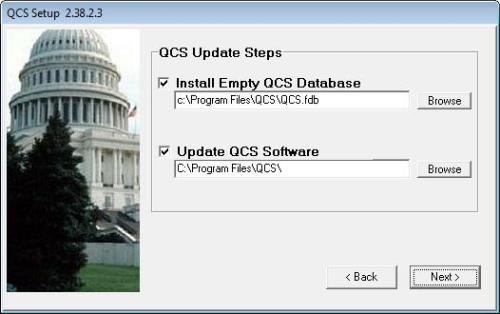
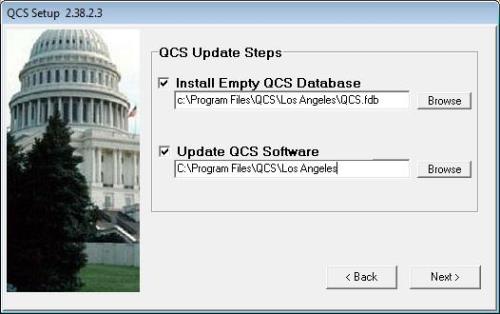
- In the top edit box you will enter C:\Program Files\QCS\<District Name>\QCS.FDB. In District Name you will enter the name of new District you will be adding. Remember to follow the Microsoft naming conventions for folders. So for example if you wished to install QCS for the Los Angeles District you will have the path C:\Program Files\QCS\Los Angeles\QCS.FDB.
- In the lower edit box you will enter the folder where you wish to install all of the executable software. We recommend that you install the software into the same folder where the database is to be installed as specified in the top edit box. So using our example from stop 3 above we will enter C:\Program Files\QCS\Los Angeles. This is shown in the screen shot below:
- Complete the installation. When the installation is done you will have a shortcut on your desktop called "QCS". Make sure that you rename it appropriately.
- Note that in Windows Vista or Windows 7 you will have to create your own shortcut.